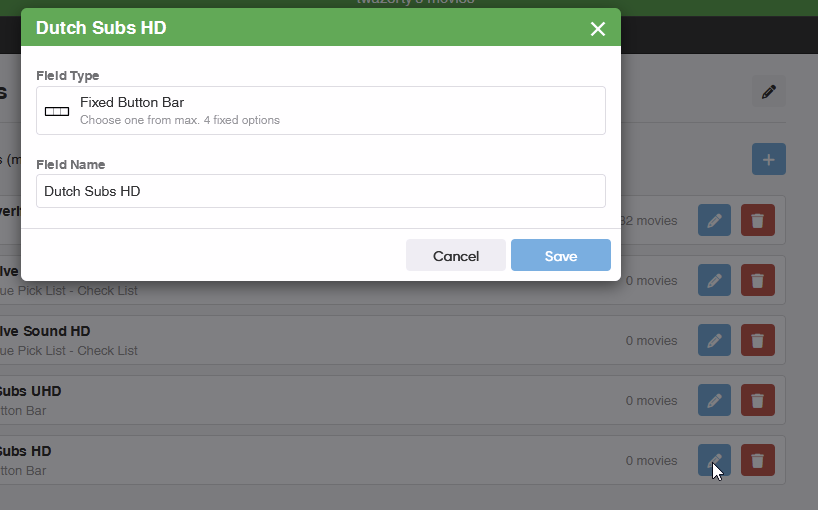
I am playing around with the new features to see if I can migrate to the new custom fields. While playing with it I made a mistake in the Fixed Button Bar. I added my 3 items in the wrong order. I was searching for a location to correct this, but I could not find it. I also cannot edit the items, so I also cannot add a fourth option. After I created it I cannot edit it anymore. Screenshot after I click the Edit button:
Indeed, Fixed List and Fixed Button Bar can not be modified. They are not pick lists. They are fixed list. This means you create them once in the Custom Fields screen, and they can not be shuffled/added to/modified/etc.
I see you made a fixed button bar for “Dutch Subs HD”
Should this perhaps be a Toggle? Meaning Yes/No? Or are there more options?
I have it on the ideas list to modify the order of the fixed buttons, but that’s it. Changing them, removing one, merging, stuff like that, is not going to happen on this type field though.
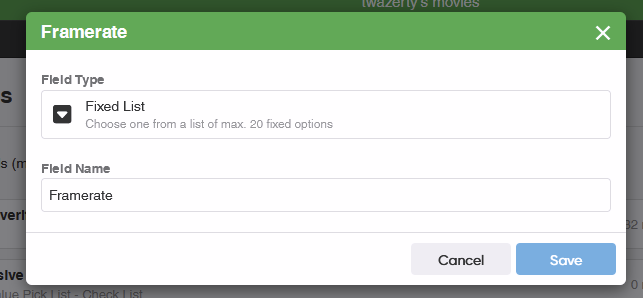
I see you made a fixed list for Framerate.
I think I would make a regular Pick List for this. Who knows in the future if there will be more types of framerates
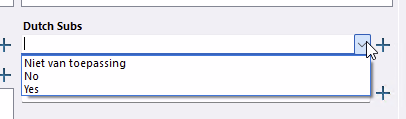
Dutch Subs has a third option. Yes means it has Dutch Subs, No means it does not have Dutch Subs, but there is a third case. Silent movies for example don’t have any spoken word, so No would suggest there is spoken wordt but there are no Dutch subs available. So I put it to Not applicable. In the desktop app I chose a pick list for this:
I already changed Framerate to a pick list before I populated the field. I am not necessarily choose the correct data type. I choose the one that can be populated the quickest (by keyboard in many cases) or gives me the best result in displaying / filtering. Some Yes/No fields I rarely change to Yes, so no issue if I cannot edit it with the keyboard. The problem I have with the Yes/No option is that it is missing a third option: Not set / Not applicable. A yes/no type is always showing up in the list. Sometimes I only want to have it displayed when it is Yes. So I might change Yes/No to a pick list or a fixed list to solve this issue. For example: “Fake barcode“. I only want to set it to records where I assigned a barcode that is not actually printed on the box. I only want to show it in the list of custom fields when it is set to Yes.
I can share my choices with an explanation for each field. Could also be helpful for other users.
For Dutch Subs you’ve chosen to create a Pick List on windows as well, but since it’s always going to be 3 options, the fixed button bar will work, but you just have to create it again. There is no changing of order/changing of “names” of the options. It is fixed. So when creating it, just take care of doing it right the first time.
Good to hear you made a Pick List now for Framerate, that will probably end up to be the right choice.
If you want to share with other users what you are creating you are free to make a post about that of course.
As for getting your Custom Fields from Windows to Web…
Creating them on Web right now as you are doing, and then later syncing will never work.
We have built a special import already, using the XML from the Movie Collector software. This tool IS ready, but not tested yet.The procedure is a one time export from Movie Collector to CLZ Comics Web - no syncing. So it’s aimed for users who are planning to trade in their Movie Collector license to move completely to CLZ Movies Web.
Also: if you do want to use that special import, it would mean any custom fields you made on Web will be removed. I’m not sure if this is something for you, since you’re already building the Custom Fields now on Web - so those you’ve already built will go away if you’d use this procedure.
That said: Are you interested in testing that? If so: you contact us at help.clz.com and we can walk you through that?
Maybe that will also help us debug the tool!
But please note the warnings I’ve typed out above.
Yesterday I synced all my User Defined Fields from Desktop to Web. So all my custom fields in Web are now populated with my real data from Desktop. I used a combination of different functions from Desktop and Web to transfer all data (clever use of existing functionality). I used the “Owner” field (unused in my collection) to transfer all my custom fields. So I had to sync a couple of times to transfer each field. Sometimes I could use “Transfer Field Data“ in Desktop and Web to put it in the right custom field.
So this means I now must continue to use Web, I cannot go back to Desktop anymore.
I still need to transfer some data from my other collections and then I am done. I also use this moment to check if my custom fields are still good.
Thanx for the offer, but since I already copied my data, I don’t need the one time export from Desktop to Web. But maybe other users are interested to help testing that. If you asked me before the release of the Custom Fields I would definitely have joined to test it.